UsbVersion Up

Many issues can be resolved by updating to the latest version.
The latest USB memory version is Ver7.8.3. January 2026 Edition
Compatible with Windows 11 24H2/25H2
Countermeasures for security software false positives
Compatible with the new Windows Media Player


日本語解説ページは こちら

  • Security software false positive countermeasures
  • Support newer versions of Windows (Windows11 24H2/25H2)
  • Repair USB system files
  • Handling newly discovered problems
USB Auto-Update Feature

The USB drive has an automatic update feature. Since version checks occur every 30 days, the update screen may not appear if the drive has not been used for an extended period. In this case, please perform the version upgrade using the following steps.
It addresses the impact of Windows Update and false positives from security software.

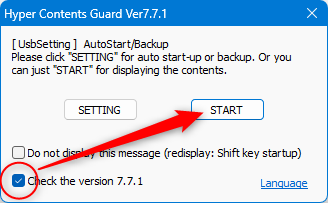
Step 1. USB Version Checking

Turn on the New Version check

  • If the above screen does not appear, hold down the Shift key and double-click USBstart to start it.
    SHIFT + UsbStart.exe
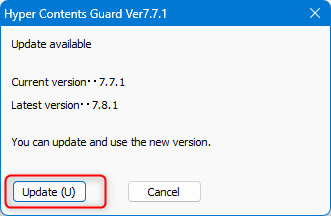
Step 2 Update

Step 3 operation check

The update was successful.
Would you like to start with the new version?
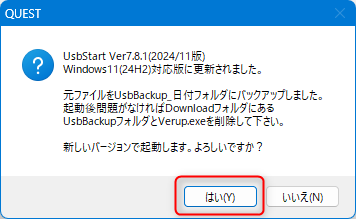
The version before the update is backed up.
“UsbBackup_XXXXXXXX” folder
If there is no problem after activation, delete it.

In addition to the above, you can also download update software to upgrade your software.
USB support page (Japanese only)

UsbQuickStart (autostart)
It is an ERROR if an older version is set to auto-start.

Run usbQuickStart.exe in the setup folder to uninstall the old version. Then run UsbQuickStart again to re-setup the new version.

The latest version of UsbQuickStart.exe is Ver 7.0.0.27 May 9, 2024


How to Download and Apply the Update Software

The online update described above may not be available due to your security software or if you are not connected to the internet. In such cases, please download and apply the update software.

Update Software Download Ver7.8.3

Please extract the downloaded ZIP file.
Insert the USB drive you wish to update first, then run Verup.exe located inside the extracted folder.


Verup.exe

  1. Insert the USB drive you wish to update first and confirm that UsbStart.exe is present.
    (Do not run UsbStart, as it will be replaced.)
  2. Unzip the ZIP file
    Unzip the ZIP file downloaded above. Double-click VerUp.exe in the unzipped folder to run it.
  3. Screen Operations
    Confirm the target USB drive, check the box next to “I understand the above instructions,” and click the [Update] button.

The update completes in about 5 seconds. Once finished, remove the USB drive immediately.
If updating multiple drives, insert the next USB drive and click the [Update] button to process them consecutively.

Update consecutively

The update software VerUP.exe can update multiple USB drives consecutively.

1.Once the update is complete, the device will perform a safe removal.
Then, please unplug the USB.

2.Insert the next USB to be updated, then click the [Update] button.